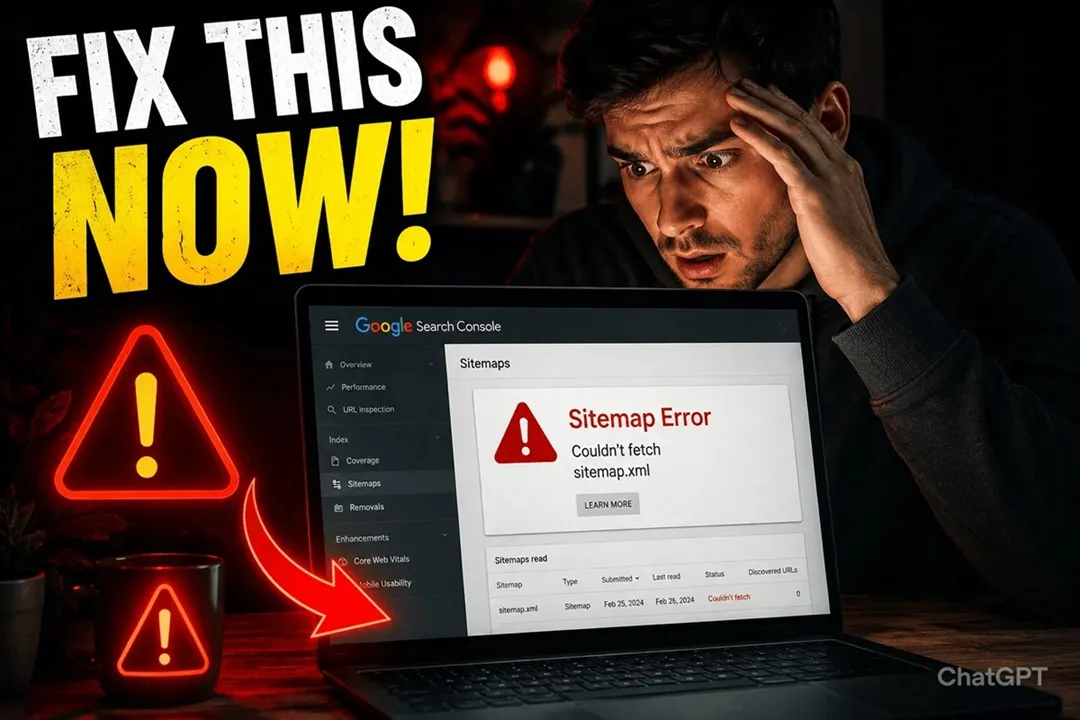
What does “Sitemaps: Temporary Processing Error” mean?
If Google Search Console shows ‘Sitemaps: Temporary Processing Error,’ Google may be temporarily unable to fetch or process your sitemap. The error does not automatically mean your website or sitemap is permanently broken
If your sitemap was previously opening correctly and Search Console was able to read it, there’s no need to panic immediately.
Decoding the “Sitemaps: Temporary Processing Error” in Google Search Console
Errors inside the Google search Console makes developers or SEO Professionals frustrated and trigger panic instantly. Among the various warnings, the “Sitemaps: Temporary Processing Error” is particularly frustrating. It is vague, highly abrupt, and leaves you guessing whether your search engine optimization efforts are silently collapsing.
Here is the good news: true to its name, this warning is usually just a passing glitch. In some cases, the error may clear after Google retries processing the sitemap. That said, if the problem persists, Google may have more difficulty discovering URLs that are primarily exposed through the sitemap.
What’s Actually Going On With a “Temporary Processing Error”?
Picture your XML sitemap as a neatly organized blueprint of your house that you hand over to Googlebot. Google uses this roadmap to zip around your site, discover new pages, and figure out how everything connects.
When you see a Temporary Processing Error, it just means that when Google tried to download and read your sitemap file, something interrupted the process. Think of it like a dropped phone call—right at the exact microsecond Googlebot knocked on your server’s door, there was a brief timeout, a network hiccup, or a connection drop.
Unlike serious red-flag errors (like a Syntax Error or a Sitemap Couldn’t Be Read notice, which mean your code is genuinely broken), a temporary error usually means your sitemap is actually fine. The hiccup happened entirely during the handoff between Google’s crawler and your web host.
Why Is This Happening? (Let’s Break Down the Root Causes)
Before we start tinkering with settings, it helps to know why Googlebot hit a brick wall. Usually, this annoying error boils down to one of four common culprits:
1. Your Server Got Overwhelmed (Timeouts): If your hosting provider is handling a massive surge of traffic, running background backups, or simply choking on limited CPU and RAM, it might take too long to reply to Google. If your server takes even a few seconds too long to dish out that XML file, Google gets impatient, drops the connection, and flashes a processing error.
2. Overzealous Security or CDNs (Cloudflare & Firewalls): Modern websites use tools like Cloudflare or Web Application Firewalls (WAFs) to block malicious bots. But sometimes, these settings are tuned too strictly. If your firewall mistakes Googlebot for a sketchy scraper and throws up a CAPTCHA or blocks the request outright, Google can’t read your sitemap.
3. Your Sitemap is a Monster File: Google has strict rules for a reason. An individual sitemap can hold a maximum of 50,000 URLs and must be under 50MB (uncompressed). If you try to cram millions of links into one massive file, Google’s parser will likely time out trying to digest it.
4. A Glitch on Google’s End: Believe it or not, it’s not always you! Sometimes Google Search Console itself is having a bad day—dealing with regional data center lags or internal crawler bottlenecks. In these rare cases, the best move is literally just waiting it out for 48 to 72 hours.
Step-by-Step Troubleshooting Guide (How to Fix It)
If the warning won’t budge and you want to take matters into your own hands, work through this simple checklist to track down and crush the issue.
[Start: Error Detected]
       │
       ├─► Step 1: Can you open it in an incognito window?
       ├─► Step 2: What do the server response headers say? (Looking for 200 OK)
       ├─► Step 3: Is there a hidden XML syntax typo?
       ├─► Step 4: Are security firewalls locking out Googlebot?
       └─► Step 5: Are your sitemaps too massive? (Split them up!)
Step 1: Open It Up Yourself (The Manual Test)
Fire up a private or incognito window in your browser and type in your exact sitemap URL (e.g., [https://example.com/sitemap.xml](https://example.com/sitemap.xml)).
What do you see? Does it load cleanly as a neat block of code with tags like <urlset> and <loc>?
Is it throwing a 404 or a 500 server error? Remember, if a regular human can’t view the page smoothly, Googlebot definitely can’t either.
Step 2: Check Your Server Response Headers
Just because a page loads in your browser doesn’t mean search bots see the same thing (browsers are great at hiding minor redirects). Run a quick check using a command-line tool like cURL or a free online HTTP header checker:
Bash
curl -I https://example.com/sitemap.xml
You want to see an explicit HTTP/1.1 200 OK status code.
Watch out for sneaky 301 or 302 redirect loops, which completely throw off Google’s automated fetcher.
Step 3: Run an XML Syntax Check
It only takes one tiny typo to break an entire file. A stray character, an unclosed tag, an unescaped ampersand (using & instead of &), or an accidental blank space at the very top of your file can send the XML parser into a tailspin.
If you are using an automated WordPress plugin like Yoast or Rank Math, make sure it isn’t accidentally spitting out an HTML error page wrapped inside your XML file.
Step 4: Audit Your Firewall & Cloudflare Logs
Jump into your hosting dashboard or your Cloudflare security tab and check the recent activity logs. Look closely to see if Googlebot’s user agent was recently challenged, rate-limited, or blocked.
Whitelist verified Googlebot IP ranges if needed.
If you have an aggressive “Bot Fight Mode” or high-security preset turned on, try dialing it back slightly to see if the error clears up.
Step 5: Check Your Sitemap Size & Structure
If your site is massive and keeps timing out, your sitemap structure probably needs a diet:
If you are pushing past 50,000 URLs, break your catalog down into multiple child sitemaps (e.g., sitemap-posts.xml, sitemap-products.xml).
Wrap them all together cleanly using a Sitemap Index File so you only have to submit one master link to Google.
Best Practices to Keep This Error Away For Good
Once you’ve kicked the error to the curb, a few simple habits will keep your site running smoothly:
Turn on Gzip Compression: Serving compressed files (.xml.gz) shrinks your sitemap’s file size dramatically, making it lightning-fast for crawlers to download.
Don’t Hammer the “Resubmit” Button: It’s tempting to smash that resubmit button every few hours when you see an error, but don’t do it! Avoid repeatedly deleting and resubmitting your sitemap while troubleshooting. Once you’ve confirmed that the sitemap is accessible and valid, give Google some time to process it rather than repeatedly resubmitting it.
Check Your Robots.txt: Make sure your robots.txt file is pointing cleanly to your sitemap location and isn’t accidentally telling Googlebot to stay away from your files.
Keep Your Hosting Stable: If you’re on a dirt-cheap shared hosting plan that crashes under heavy traffic, it might be time to look into a more reliable host with consistent uptime.
If you’re seeing “Couldn’t fetch sitemap” or “0 URLs discovered” and can’t find the fixes, just don’t panic — you’re not alone. Google search console sitemap errors fix can easily be achievable.
I’ve been there too — staring at errors like “Couldn’t fetch” or “0 URLs discovered” and wondering what went wrong. The good news? Most of these issues are easy to fix once you understand the cause.
In this detailed guide, you will learn what a sitemap is, why sitemap errors happen, and how to fix them properly — even if you are a beginner.
What is a Sitemap and Why It Matters?🙋♀️
A sitemap is a small XML file that works like a roadmap of your website for search engines such as Google. It tells Google:
Which pages exist on your site
Which pages are important
When pages were last updated
How your website is structure
It matters because without a sitemap, Google can still find your pages, but it takes longer and may miss some pages. A proper sitemap helps faster crawling, better indexing, and improved visibility in search results.
screenshot from google search console
Typical sitemap URL looks like:
What is a Sitemap Error in Google Search Console?
A sitemap error occurs when Google is unable to access or read your XML sitemap. This prevents your website pages from being properly indexed, which can directly affect your search rankings and traffic.
A sitemap error happens when Google is unable to read or process your sitemap properly.
Your sitemap is like a map of your website, helping Google understand:
Which pages exist
Which pages to crawl
Which pages to index
If there’s an error, your website pages may not appear in search results.
In simple terms, if your sitemap has errors, Google may not understand your website structure — and that’s a big problem for SEO.
In this guide, I’ll walk you through:
What these errors actually mean
Why Sitemap Errors Happen
And most importantly, how to fix them step-by-step
Let’s get started and fix your sitemap issues the right way
When Google Search Console shows sitemap errors like “Temporary Processing Error”, it doesn’t just mean “something is wrong” — each error gives you a specific clue about what’s stopping Google from indexing your website properly.
Let’s break down the most common errors in simple terms:
1. Couldn’t Fetch
This means Google tried to access your sitemap but failed.
👉 Possible reasons:
Wrong sitemap URL
Server is down or slow
Sitemap blocked by robots.txt
👉 In simple words: Google can’t even open your sitemap
2. 0 URLs Discovered
Google accessed your sitemap but didn’t find any valid pages inside it.
👉 Possible reasons:
Empty sitemap
Incorrect sitemap format
URLs not properly added
👉 In simple words: Your sitemap exists, but it has no useful data
3. Sitemap Could Not Be Read
Google found your sitemap file but couldn’t understand it.
👉 Possible reasons:
Broken XML structure
Syntax errors in sitemap
Unsupported format
👉 In simple words: Google opened the file, but it looks like garbage to it
4. URL Not Allowed / Blocked
Some URLs in your sitemap are blocked from being crawled.
👉 Possible reasons:
Blocked via robots.txt
“noindex” tag applied
Access restrictions
👉 In simple words: You’re telling Google to index pages that you also blocked
5. Server Error (5xx)
Your server failed while Google was trying to access the sitemap.
👉 Possible reasons:
Hosting issues
Server overload
Timeout errors
👉 In simple words: Your website didn’t respond properly to Google
6. Permalink Structure Problem (Very Common)❓
WordPress uses rewrite rules to generate sitemap URLs. Sometimes these rules break, and sitemap stops working. Refreshing permalinks often fixes the issue instantly.
7. Cache or Firewall Blocking Googlebot🤖
Caching plugins, security plugins, or Cloudflare may block Google from accessing sitemap files, causing “Couldn’t fetch” errors.
9. robots.txt Blocking Crawling 🐤
If robots.txt blocks Google, it cannot read your sitemap.
If robots.txt blocks Google, it cannot read your sitemap. To see how resolving these crawl restrictions directly improved search visibility and indexing health, check out our SEO case study of Factechno.
If you see the “Sitemap Could Not Be Read” error in Google Search Console, it means Google found your sitemap file but couldn’t understand its content.
In simple terms: your sitemap exists, but it’s broken or in the wrong format.
Follow these steps to fix it:
✅ Step 1: Open Your Sitemap URL
Visit your sitemap in a browser:
👉 https://yourdomain.com/sitemap.xml
Check:
Does it load properly?
Or do you see errors / blank page / weird text?
👉 If it looks messy or broken → that’s the issue
✅ Step 2: Check XML Format
A valid sitemap must follow proper XML structure.
👉 It should contain:
<urlset> tag
<url> entries
<loc> URLs
❌ If tags are missing or broken → Google can’t read it
✅ Step 3: Validate Sitemap
Use an online XML sitemap validator tool.
👉 This helps you find:
Syntax errors
Missing tags
Invalid structure
✅ Step 4: Check File Type
Your sitemap must be in correct format:
✅ Allowed:
.xml
.xml.gz
❌ Not allowed:
HTML pages
TXT files
Redirecting URLs
✅ Step 5: Fix Plugin or Generator Issues
If you’re using WordPress:
Go to your SEO plugin (Rank Math / Yoast)
Disable sitemap → Enable again
Regenerate sitemap
👉 Plugins sometimes create corrupted sitemaps
✅ Step 6: Check for Extra Code or Errors
Avoid:
Random text before XML starts
Broken characters
Server error messages inside sitemap
👉 Even small mistakes can break readability
✅ Step 7: Resubmit Sitemap in GSC
After fixing:
Go to Google Search Console
Remove old sitemap
Submit again
Click “Validate Fix”
🚀 Remember
Always keep your sitemap:
Clean
Automatically generated
Updated regularly
👉 Don’t manually edit XML unless you know what you’re doing
🎯 Final Note
“Sitemap Could Not Be Read” is usually caused by:
Broken XML structure
Wrong file format
Plugin or server issues
Fix the format, and Google will start reading your sitemap normally.
URL Not Allowed / Blocked – How to Fix It
If you see “URL Not Allowed” or “Blocked” in Google Search Console, it means some URLs in your sitemap are restricted from being crawled or indexed.
In simple terms: you’re asking Google to index pages that are actually blocked.
Follow these steps to fix it:
✅ Step 1: Check robots.txt File
Open: 👉 https://yourdomain.com/robots.txt
Look for rules like:
❌ Example: Disallow: /
OR Disallow: /page-url/
👉 This blocks Google from accessing those URLs
✅ Fix:
Remove or edit the disallow rule
Allow important pages
✅ Step 2: Check “noindex” Tag
Some pages may have a “noindex” tag.
👉 This tells Google: “Do NOT show this page in search results”
Check:
Open page → View page source
Look for:
❌ If present → Google will ignore it
✅ Fix:
Change to:
✅ Step 3: Check Page Visibility (CMS Settings)
If you’re using WordPress:
Edit the page/post
Check SEO settings (Rank Math / Yoast)
Make sure:
Index = ON
Not set to “noindex”
✅ Step 4: Avoid Blocked URLs in Sitemap
Your sitemap should only include:
✅ Allowed:
Indexable pages
Important content
❌ Avoid:
Admin pages
Login pages
Blocked or private URLs
✅ Step 5: Check HTTP Status Code
Make sure your URLs return:
✅ 200 OK
❌ Not:
403 (Forbidden)
401 (Unauthorized)
👉 These block access to Google
✅ Step 6: Resubmit Sitemap
After fixing:
Go to Google Search Console
Update sitemap
Click “Validate Fix”
🚀 Pro Tip
Golden rule of SEO:
👉 If a page is in your sitemap → it MUST be indexable
No blocks, no restrictions, no confusion.
🎯 Final Note
“URL Not Allowed / Blocked” usually happens due to:
robots.txt restrictions
noindex tags
Wrong sitemap entries
Fix the conflict, and Google will start indexing those pages properly.
If Google Search Console shows a “Server Error (5xx)”, it means your website server failed to respond properly when Google tried to access your sitemap or pages.
In simple terms: your website is not responding correctly to Google.
Unlike other errors, this is not a sitemap issue — it’s a server/hosting problem.
🔍 What is a 5xx Error?
“5xx” errors are server-side errors. Common types include:
500 – Internal Server Error → Something broke on your server
502 – Bad Gateway → Server got an invalid response
503 – Service Unavailable → Server is overloaded or under maintenance
504 – Gateway Timeout → Server took too long to respond
👉 All of these mean: Google tried, but your server failed
✅ How to Fix It
Step 1: Check If Your Website is Live
Open your website in browser
If it loads slowly or shows error → server issue confirmed
Step 2: Contact Your Hosting Provider
This is the most important step.
👉 Ask them:
Is the server down?
Is there high load or downtime?
Is Googlebot being blocked?
Step 3: Check Server Resources
5xx errors often happen due to:
Low hosting resources (cheap hosting)
Too much traffic
Heavy plugins or scripts
👉 Fix:
Upgrade hosting plan
Remove unnecessary plugins
Optimize website speed
Step 4: Check Firewall / Security Settings
Sometimes security tools block Google.
👉 Check:
Firewall settings
Security plugins (Wordfence, etc.)
👉 Make sure:
Googlebot is allowed
Step 5: Reduce Server Timeout Issues
If your site is slow:
👉 Fix:
Use caching plugin
Enable CDN (like Cloudflare)
Optimize images and code
Step 6: Retry & Validate in GSC
After fixing:
Go to Google Search Console
Click “Validate Fix”
Wait for Google to recheck
🚀 Pro Tip
If 5xx errors happen frequently:
👉 Your hosting is the problem.
Switch to a better hosting provider — it directly impacts your SEO and rankings.
🎯 Final Note
“Server Error (5xx)” is usually temporary, but if ignored:
❌ Google may stop crawling your site ❌ Pages may drop from search results
Fix your server stability, and everything else will fall into place.
Permalink Structure Problem – How to Fix It
If your sitemap is correct but Google still shows errors, the issue might be your permalink structure.
In simple terms: your website URLs are not SEO-friendly or properly configured.
This refreshes your URL structure and fixes hidden issues
Step 3: Regenerate Sitemap
After updating permalinks:
Go to your SEO plugin (Rank Math / Yoast)
Disable sitemap → Enable again
Generate fresh sitemap
Step 4: Check Old URLs (Redirects)
If you changed permalink structure:
👉 Old URLs may break
Fix:
Set up 301 redirects
Use plugin like Redirection
Step 5: Resubmit Sitemap in GSC
After everything is fixed:
Go to Google Search Console
Submit updated sitemap
Click “Validate Fix”
🚀 Remember
Always use this permalink structure:
👉 https://yourdomain.com/post-name/
Avoid:
Dates in URL
Numbers or random IDs
Long messy URLs
🎯 Final Note
“Permalink Structure Problem” usually happens when:
Default URLs are used
Permalink settings are changed incorrectly
Sitemap is not updated after changes
Fix your URL structure, and your sitemap + indexing issues will improve significantly.
Fixing Google Search Console issues are vital for SEO and for blog writing Gutenberg WrodPress editor would be the best choice.
Cache or Firewall Blocking Googlebot – How to Fix It
Sometimes your sitemap and website are perfectly fine — but Google still shows errors. The reason? Your cache system or firewall is blocking Googlebot.
In simple terms: your website is stopping Google from accessing it.
🔍 What is Googlebot?
Googlebot is Google’s crawler that visits your website to:
Read your pages
Index your content
Update search results
👉 If Googlebot is blocked, your site won’t be indexed properly.
🚨 Why This Happens
Blocking can happen due to:
Cache plugins misconfiguration
Firewall/security rules
CDN restrictions (like Cloudflare)
Hosting-level security
👉 Result: Google shows errors like:
“Couldn’t Fetch”
“Server Error (5xx)”
“Blocked”
✅ How to Fix It
Step 1: Check Firewall Settings
If you’re using security tools (Wordfence, Sucuri, etc.):
Open firewall settings
Check blocked IPs / bots
Make sure Googlebot is NOT blocked
Step 2: Allow Googlebot Explicitly
Add allow rule for Googlebot:
User-agent: Googlebot
👉 Allow full access
Step 3: Check Cloudflare or CDN
If using Cloudflare:
Go to Security → Settings
Disable “Bot Fight Mode” (if causing issues)
Whitelist Googlebot
Step 4: Clear Website Cache
Caching can sometimes serve outdated or broken responses.
👉 Fix:
Clear cache plugin
Purge CDN cache
Reload sitemap
Step 5: Test with URL Inspection Tool
In Google Search Console:
Use “URL Inspection”
Click “Test Live URL”
👉 This shows if Google can access your page in real-time
Step 6: Check Server Logs (Advanced)
If issue still exists:
Check server logs
Look for blocked Googlebot requests
👉 You may need developer or hosting support here
🚀 Remember
Never block bots blindly.
👉 Some plugins block “unknown bots” — but sometimes they block Googlebot too.
Always verify before enabling strict security settings.
🎯 Final Note
“Cache or Firewall Blocking Googlebot” usually happens due to:
Fix access issues, and Google will start crawling your site normally again.
robots.txt Blocking Crawling – How to Fix It
If Google Search Console shows crawling or indexing issues, your robots.txt file might be blocking important pages.
In simple terms: you are accidentally telling Google “don’t visit my site.”
🔍 What is robots.txt?
robots.txt is a file that controls how search engines crawl your website.
👉 Example URL: https://yourdomain.com/robots.txt
It gives instructions like:
Which pages to crawl
Which pages to block
🚨 Common Mistakes
❌ Blocking entire website: Disallow: /
👉 This tells Google to crawl NOTHING
❌ Blocking important pages: Disallow: /blog/ Disallow: /sitemap.xml
👉 This blocks your content and sitemap
✅ How to Fix It
Step 1: Open robots.txt File
Visit: 👉 https://yourdomain.com/robots.txt
Check for any “Disallow” rules
Step 2: Allow Important Content
Use a clean structure like this:
User-agent: * Allow: /
👉 This allows Google to crawl your site
Step 3: Make Sure Sitemap is Not Blocked
Add this line:
Sitemap: https://yourdomain.com/sitemap.xml
👉 Helps Google find your sitemap easily
Step 4: Remove Unnecessary Blocks
Keep blocks only for:
✅ Allowed to block:
/wp-admin/
/login/
/private/
❌ Do NOT block:
Blog posts
Pages
Sitemap
Step 5: Test in Google Search Console
Go to robots.txt tester (or URL inspection)
Check if your pages are crawlable
Step 6: Update & Recheck
After fixing:
Save robots.txt
Clear cache
Test again in GSC
🚀 Remember
Keep your robots.txt simple.
👉 Over-complicated rules often create problems.
🎯 Final Note
“robots.txt Blocking Crawling” usually happens due to:
Wrong disallow rules
Blocking sitemap or pages
Misconfiguration
Fix it, and Google will start crawling your site properly again.
How Long Does It Take to Fix Sitemap Errors?
Sitemap readable → 10–30 minutes
Status update → Few hours
URLs discovered → 1–3 days
Indexing improvement → 1–2 weeks
Be patient — indexing takes time.
Final Thoughts
Sitemap errors may look scary, but they are usually easy to fix. In most cases, refreshing permalinks, clearing cache, and submitting the correct sitemap solves the problem.
A working sitemap helps Google crawl your website faster, index pages properly, and improve your visibility in search results.
Frequently Asked Questions
Conclusion
Seeing a Temporary Processing Error pop up in Search Console can give you a mini heart attack. In many cases, this is a temporary issue rather than a permanent problem with your sitemap. By checking your response codes, making sure your XML syntax is clean, and ensuring your security firewall isn’t playing bodyguard too aggressively, you can get your sitemap back on track and help Google process it properly.
Frequently Asked Questions –
Is this error going to tank my search rankings?
Usually, no—as long as it clears up fairly quickly. Since this is a temporary hiccup, it just means Google couldn’t read your sitemap during that specific crawl attempt. A sitemap helps Google discover URLs, but having a sitemap error does not automatically mean your rankings will drop. Google can discover URLs through internal links and other sources.
Should I keep deleting and resubmitting my sitemap to force a fix?
Try to resist the urge to spam that resubmit button. When panic sets in, a lot of site owners delete and re-add their sitemap multiple times a day. All this does is throw your request right back to the very end of Google’s processing queue. In some cases, the best approach is to wait and check Search Console again later.
How can I tell if the problem is my website or Google’s fault?
Do a quick manual check! Open an incognito window in your browser and try loading your exact sitemap URL. If you get a blank screen, a 404, or a 500 server error, the culprit is on your end (hosting, plugin conflict, or caching issue). If it loads smoothly and cleanly for you, but Search Console is still throwing a fit, it’s almost certainly a brief backend glitch or lag on Google’s side of the fence.
Could my security plugin or Cloudflare be causing this mess?
Yes, it happens all the time. If your firewall or security setup has an overly aggressive “bot protection” mode turned on, it might mistake Googlebot for a sketchy web scraper. When Google attempts to grab your XML file, the firewall blocks it or throws a security challenge page in its face—triggering a processing error. Checking your firewall logs will tell you right away if Google’s bots were turned away at the door.
What are the strict size limits I need to watch out for?
To keep servers from crashing and parsers from breaking, Google enforces a hard ceiling on individual sitemap files: maxing out at 50,000 URLs and a maximum file size of 50 megabytes (MB) uncompressed. If your site is massive, don’t try to cram everything into one giant file—break your content into smaller child sitemaps and bundle them together with a master index file.
Hi, I’m VIJAY WASNIK, the founder of Factechno.com. Like many aspiring webmasters, I balance a busy professional work schedule while building digital assets in my spare time. My mission with Factechno is simple: to document hands-on SEO experiments, Google Search Console troubleshooting, and Artificial Intelligence —cutting through theory to show what genuinely works for solo creators.
Recent Comments
hi
Very useful tips for anyone looking to improve their blog’s SEO! Creating valuable, well-structured content while focusing on search intent…
Helpful and practical. Thanks for sharing your knowledge.






hi