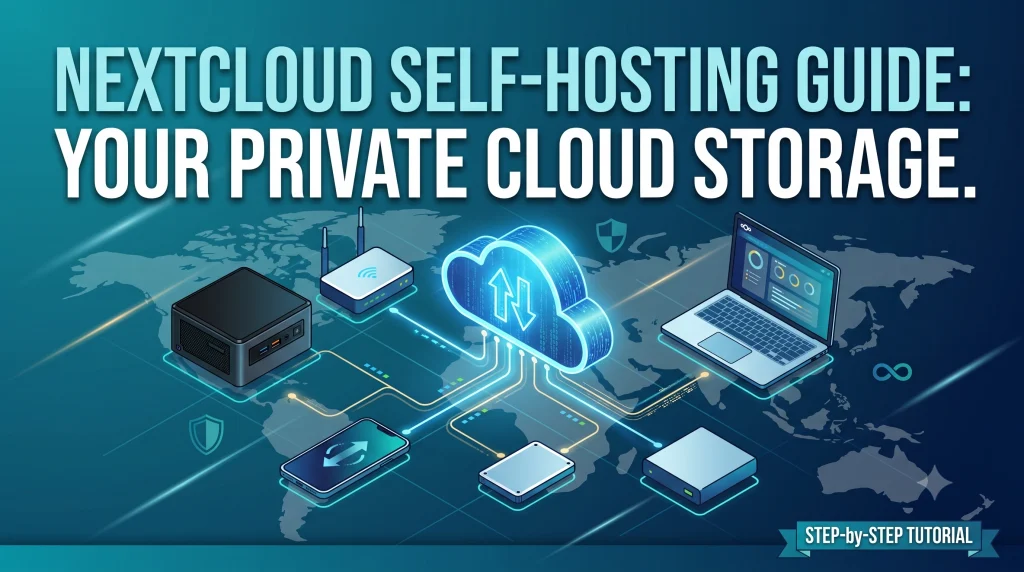
Your personal cloud with Nextcloud and Docker is on its way.
Storing personal photos and documents with big names like Google Drive, Microsoft OneDrive, and Dropbox is undeniably convenient, but the endless stream of subscriptions has become a real drain on our wallets. People are simply fed up with paying a recurring fee for every little service. Cutting out recurring digital storage fees is actually one of the smartest tips to save money without giving up features.
Whenever you upload a personal file to these platforms, it lands on remote servers subject to automated scans and terms of service that can change overnight. That is why setting up your own private cloud using Nextcloud and Docker is a genuine game-changer for everyday home users.
If you’d rather truly own your data, enjoy as much storage as your hard drive can handle, and say goodbye to recurring fees, self-hosting Nextcloud & Docker is one of the best moves you can make.
In this guide, we’ll walk step-by-step through the simplest, cleanest, and most reliable way to get Nextcloud up and running using Docker and Docker Compose.
Why Pick Personal Cloud With Nextcloud and Docker Over Commercial Cloud Services?
Nextcloud is much more than a simple file locker—it’s a complete personal productivity hub. It gives you pretty much everything you’d expect from Google Workspace or Microsoft 365, from file syncing and calendar/contact management to document editing and automatic phone photo backups.
Good news: you don’t need an enterprise-grade rack server to run Nextcloud smoothly! It runs great on:
An old laptop or desktop you have lying around (an Intel Core i3/i5 or equivalent with 4 GB+ of RAM works nicely).
A Raspberry Pi 4 or 5 (ideally the 4 GB or 8 GB RAM version).
A budget Linux VPS (like Hetzner, Linode, or DigitalOcean) if you prefer 24/7 uptime without running hardware at home.
What You’ll Need:
Operating System: Ubuntu Server (22.04 / 24.04 LTS) or Debian 12. (Linux has come a long way since its early days—you can read about the visionary behind the kernel in our piece on Linus Torvalds).
Storage: An SSD for the operating system and Docker containers, plus an external hard drive or larger SSD for your media and files.
A Domain Name: Any cheap domain (from Namecheap, Cloudflare, etc.) if you want easy remote access and SSL.
Why Use Docker for Nextcloud?
While you can install Nextcloud & Docker using a classic LAMP stack (Apache, MySQL, PHP) or Snap packages, Docker is widely loved in the self-hosting community for three big reasons:
Clean & Isolated: The database, web server, and cache each live in their own neat container, keeping your main operating system spotless.
Hassle-Free Updates: Updating Nextcloud is as simple as pulling a fresh image—no messy PHP version conflicts or broken dependencies.
Total Portability: If your machine ever gives out, simply copy your compose file and data folder over to a new computer, and you’re back up in minutes.
Building your own personal cloud with Nextcloud and Docker is the cleanest way to reclaim your storage freedom.
If you have never touched a terminal or managed a server before, don’t worry. Think of this walkthrough like assembling a simple Lego set—follow the pieces step by step, and everything will fall right into place.
A Quick Mental Picture Before We Start🧠
Imagine Docker as a magical organizer box. Inside this organizer, every app lives in its own neat container so nothing spills into your main operating system:
Nextcloud is the storefront—the clean, Google Drive-style web interface where you see and manage your files.
MariaDB is the quiet accountant in the back room—a database holding your passwords, usernames, and system settings.
Here is how to set up both in five straightforward steps.
Step 1: Install the Docker Engine
Open up your black terminal window (via SSH or directly on your machine).
1. Clean up and update your system:
Bash
sudo apt update && sudo apt upgrade -y
Just like tidying up a workbench before starting a project, this command makes sure your computer’s existing software is fresh, secure, and ready.
2. Download and run the automated Docker installer:
Bash
curl -fsSL https://get.docker.com -o get-docker.sh
sudo sh get-docker.sh
This pulls down Docker’s official setup script and installs everything automatically. Sit back and watch the lines scroll by until it finishes.
3. Give your user account permission to run Docker:
Bash
sudo usermod -aG docker $USER
By default, Linux keeps administrative keys locked down. This command tells the system: “Give my user account the green light to manage Docker without typing ‘sudo’ every single time.”
4. Log out, log back in, and verify: Type exit to leave your terminal, open it back up, and run:
Bash
docker --version && docker compose version
If you see version numbers pop up on the screen, your Docker engine is fully operational.
Step 2: Create a Dedicated Home for Nextcloud
Rather than letting files scatter across your drive, build a dedicated workspace with its own storage shelves:
Bash
mkdir -p ~/nextcloud-docker && cd ~/nextcloud-docker
mkdir -p nextcloud_data db_data
Here is what just happened:
mkdir -p ~/nextcloud-docker: Creates a new project folder named nextcloud-docker.
cd ~/nextcloud-docker: Steps inside that new folder.
mkdir -p nextcloud_data db_data: Builds two distinct drawers inside:
nextcloud_data: Where your photos, documents, and uploads will live.
db_data: Where your database keeps all passwords and account details safe.
Step 3: Write the Recipe (docker-compose.yml)
Now hand Docker a recipe card that explains exactly what services to create and how they connect to each other.
1. Open a blank file editor:
Bash
nano docker-compose.yml
nano is a simple text editor right inside your terminal. You’ll see a clean, empty screen.
2. Copy and paste the configuration below:(Tip: In most terminals, right-clicking or pressing Ctrl + Shift + V pastes the text)
One Crucial Detail: Use your keyboard arrow keys to scroll down to CHANGE_THIS_DB_PASSWORD and CHANGE_THIS_ROOT_PASSWORD. Replace them with your own secure passwords (like SuperSecretNextcloudPass123!). Make sure the value for MYSQL_PASSWORD matches under both the db and app sections.
3. Save and close:
Press Ctrl + O (Write Out / Save).
Press Enter (Confirm the file name).
Press Ctrl + X (Exit back to your terminal prompt).
Step 4: Fire Up the Engine
Tell Docker to read your recipe card and launch the containers:
Bash
docker compose up -d
The -d flag stands for “detached mode”—it instructs Docker to run everything silently in the background while keeping your command line free.
Docker will download the application files, wire up the internal network, and spin up both containers. Once it says Started, check on them:
Bash
docker ps
If you see two entries labeled nextcloud-app and nextcloud-mariadb marked as “Up”, your server is officially humming along.
Step 5: Open Your Vault in the Browser
Step away from the terminal and open your favorite web browser (Chrome, Safari, Firefox, etc.).
Navigate to:Plaintexthttp://<YOUR_SERVER_IP>:8080(If your server’s local IP is 192.168.1.50, type [http://192.168.1.50:8080](http://192.168.1.50:8080). If you are sitting directly at the host computer, http://localhost:8080 works too.)
Create Your Master Account:
Admin Username: Pick an admin handle (e.g., admin).
Admin Password: Choose a strong passphrase to guard your data.
Complete Installation:
You do not need to alter any database inputs; the compose file already wired MariaDB to the app behind the scenes.
Click Install (or Finish Setup).
Give it sixty to ninety seconds while Nextcloud initializes its default structure. Once it finishes loading, your brand-new, completely private cloud workspace is ready for your first upload.
Congratulations! Your brand-new personal cloud with Nextcloud and Docker is now live and ready to store your documents.
💡 Quick Safety Tip:“Before uploading your files to your private cloud, make sure you have an extra backup on an external drive. Better safe than sorry!”
Making It Secure: Remote Access & SSL (HTTPS)
You definitely don’t want to access Nextcloud over unencrypted HTTP, especially when connecting away from home. Here are two great ways to secure it:
Option A: Cloudflare Tunnel (Best for Home Networks)
If your server sits in your living room behind a typical home internet provider, opening ports directly can be risky. A Cloudflare Tunnel (cloudflared) creates a secure outbound connection from your server to Cloudflare without opening ports 80 or 443 on your router. It gives you free SSL, keeps your home IP private, and includes built-in DDoS protection.
If you are hosting on a VPS or have a static public IP with open ports:
Run Nginx Proxy Manager in Docker.
Point your domain’s A Record to your server’s public IP.
Route incoming requests for cloud.yourdomain.com to internal port 8080.
Request a free Let’s Encrypt SSL certificate with one click in the proxy dashboard.
Quick Post-Installation Tips
To ensure fast performance and avoid sync warnings, apply these quick tweaks:
Add Trusted Domains: If accessing via a domain, edit nextcloud_data/config/config.php and add your domain under trusted_domains:PHP'trusted_domains' => array ( 0 => 'localhost:8080', 1 => 'cloud.yourdomain.com', ),
Download Sync Clients: Nextcloud offers official mobile apps for Android and iOS (with automatic camera roll upload) and desktop clients for Windows, macOS, and Linux.
Backup Your Configuration & Data: Never rely on a single drive. Set up a simple cron job to back up the ~/nextcloud-docker directory to an external drive or remote cold storage.
The Verdict: Is It Worth It?
Setting up a personal cloud with Nextcloud and Docker might take an hour of upfront effort, but the payoff is lifetime data ownership and zero monthly fees.
Zero monthly subscription fees.
Total privacy and control over your memories, documents, and backups.
An expandable system that you actually own from top to bottom.
Thanks to Nextcloud & Docker, updating and maintaining your personal cloud only takes a few minutes a month—giving you all the convenience of big tech clouds without any of the drawbacks.
Frequently Asked Questions (FAQ)
1. What happens if my server hardware crashes? Will I lose my data?
When managing your personal cloud with Nextcloud and Docker, keeping regular off-site backups ensures you never lose important memories or critical files.
Because we used Docker volumes mapped to local folders (nextcloud_data and db_data), all your files, user accounts, and settings live right inside your project directory. If your hardware ever gives out, simply copy those folders and your docker-compose.yml to a new machine and run docker compose up -d. You’ll be back up in minutes!
(Golden rule of self-hosting: always keep a backup on an external drive or cold cloud storage.)
2. Can I store my actual files on an external USB hard drive or NAS instead?
Yes, absolutely! By default, the compose file stores data inside the nextcloud_data directory. If you have a massive external drive:
Mount your drive to a path on your host system (e.g., /mnt/my_hard_drive).
In docker-compose.yml, change the volume mapping under app to point your drive to /var/www/html/data:YAMLvolumes: - ./nextcloud_data:/var/www/html - /mnt/my_hard_drive:/var/www/html/data
That way, your operating system stays on the fast SSD while your heavy media files live on your large storage drive.
3. How do I update Nextcloud when a new version comes out?
Updating with Docker is a breeze! You don’t have to fiddle with PHP versions or run risky web updaters.
Just navigate to your folder and run:
Bash
cd ~/nextcloud-docker
docker compose pull
docker compose up -d
Docker will grab the latest stable images and restart your containers with all your data untouched. (Just make sure to take a quick backup before major version leaps!)
4. Why am I getting an “Access through untrusted domain” warning?
This is Nextcloud’s built-in security kicking in! It refuses to load unless the domain or IP you’re using is explicitly approved.
To fix it:
Open your config file:Bashnano ~/nextcloud-docker/nextcloud_data/config/config.php
Look for the trusted_domains array and add your IP address or domain name:PHP'trusted_domains' => array ( 0 => 'localhost:8080', 1 => '192.168.1.50:8080', # Your local server IP 2 => 'cloud.yourdomain.com', # Your public domain ),
Save and refresh your page!
5. Can my friends and family use my Nextcloud instance too?
Yes! As the admin, you can create separate accounts for family members or teammates directly from the user settings menu.
Each person gets their own private login, personal storage quota, and access to the mobile apps. They won’t be able to see each other’s files unless they explicitly share a folder—just like Google Drive or Dropbox.
6. Do I need a super-fast internet connection to run this at home?
For syncing files within your home Wi-Fi network, your internet speed doesn’t matter at all—it transfers at full local network speeds (usually blazing fast gigabit speeds!).
However, when accessing your files or uploading photos while away from home, your experience depends on your home internet’s upload speed. An upload speed of 15–20 Mbps or higher is generally plenty for smooth remote streaming and photo backups.
7. How does Nextcloud compare to TrueNAS, Unraid, or CasaOS?
TrueNAS and Unraid are full operating systems designed specifically for managing hard drive arrays and network storage. CasaOS is a lightweight dashboard for managing Docker apps.
Nextcloud, on the other hand, is the application layer (the actual cloud interface). In fact, most people who run TrueNAS, Unraid, or CasaOS end up installing Nextcloud inside them using Docker! If you just want a personal cloud without setting up a dedicated multi-drive storage OS, this standalone Ubuntu + Docker guide is the simplest starting point.
Hi, I’m VIJAY WASNIK, the founder of Factechno.com. Like many aspiring webmasters, I balance a busy professional work schedule while building digital assets in my spare time. My mission with Factechno is simple: to document hands-on SEO experiments, Google Search Console troubleshooting, and Artificial Intelligence —cutting through theory to show what genuinely works for solo creators.