
Windows is the most widely used operating system across the world, powering millions of desktops, laptops, tablets, and even servers. Its user-friendly interface, compatibility with thousands of applications, gaming capabilities, and regular updates make it the preferred choice for both home users and professionals. However, despite constant improvements, Windows is not immune to errors, bugs, crashes, and performance issues. We will see Common Windows issues and fixes in this article.
Most users experience at least one common problem at some point — whether it’s a slow system, black screen, Blue Screen of Death (BSOD), Wi-Fi not connecting, Windows update failures, or driver issues. Fortunately, many of these problems can be solved at home without needing a technician.

In this detailed blog, we will explore the most common Windows issues and their proven solutions, step-by-step. Whether you use Windows 10 or Windows 11, these methods will help you identify, fix, and prevent problems efficiently.
Table of Contents
1. Slow Performance and System Lag
One of the most frustrating issues is when a Windows PC suddenly becomes slow, takes time to boot, or programs freeze frequently. Slowness may occur due to low storage, outdated drivers, malware, background apps, or corrupted system files.
Possible Causes:
Too many startup apps
Fragmented hard drive (HDD)
Malware or viruses
Lack of RAM
Outdated OS or drivers
Heavy temporary files
Running low on disk space

Fixes:
✔ Disable Startup Programs
Press Ctrl + Shift + Esc
Go to Startup tab
Disable unnecesary apps like Spotify, Teams, Adobe, etc.
✔ Clean Temporary Files
Press Windows + R → type temp → delete contents
Repeat with:
%temp%,prefetch
✔ Use Disk Cleanup
Search Disk Cleanup → Select C: → Clean system files
✔ Upgrade Storage to SSD
Replacing HDD with SSD can increase speed by up to 10x.
✔ Increase RAM
8GB minimum recommended, 16GB ideal for multitasking and gaming.
2. Black Screen with Cursor (Most Comman Windows Issues)
This is a very common boot-related issue, typically caused by display driver failure, corrupted system files, or Windows Explorer not launching.
Fixes:
Press Ctrl + Alt + Del → Task Manager
Click File Run new task → type explorer.exe → OK
If it doesn’t work, boot in Safe Mode and reinstall/update display drivers
Also run SFC and DISM command:

Image by OpenClipart-Vectors from Pixabay
sfc /scannow
DISM /Online /Cleanup-Image /RestoreHealth
3. Blue Screen of Death (BSOD)
A BSOD appears when Windows encounters a serious system error. You may see stop codes like IRQL_NOT_LESS_OR_EQUAL, CRITICAL_PROCESS_DIED, MEMORY_MANAGEMENT, etc.
Fixes:
Remove unsupported hardware
Update drivers through Device Manager
Run Windows Memory Diagnostic
Perform System File Check
To test RAM:
Search: Windows Memory Diagnostic
Click: Restart & check

Image by Clker-Free-Vector-Images from Pixabay
4. Wi-Fi or Internet Connection Issues
If your laptop cannot connect to Wi-Fi or shows No Internet, it could be due to driver conflicts, DNS issues, or router problems.
Fixes:
Basic Restart
Restart both router + PC.
Reset DNS and IP
Open Command Prompt (Admin) and run:
ipconfig /flushdns
ipconfig /release
ipconfig /renew
netsh winsock reset
Restart PC.
Reinstall Network Driver
Open Device Manager → Network adapters → Right-click driver → Uninstall → Restart
5. Audio Not Working
This happens due to disabled audio devices, wrong output selection, or corrupted drivers.
Fixes:
Right-click sound icon → Select Troubleshoot sound problems
Check if the correct audio output (speakers/headphones) is selected
Open Device Manager → Sound → Update Driver
Also make sure the audio service is on:
services.msc → Windows Audio → Restart

6. Windows Update Errors
Windows Update is a crucial feature of the Microsoft Windows operating system, designed to keep your computer secure and up to date with the latest features and improvements. It automatically downloads and installs updates for the operating system and various Microsoft software, addressing security vulnerabilities, enhancing performance, and adding new functionalities. Users can customize their update settings, choosing options such as automatic updates or manual installations, based on their preferences. Regularly installing updates is vital for protecting your system from malware and cyber threats, ensuring your computer runs smoothly and efficiently. While updates can sometimes be disruptive, they are essential for maintaining the overall health and security of your system.
Sometimes updates fail to install showing error codes like 0x80070020, 0x80070002, 0x8024a105, etc.
Fixes:
✔ Use Built-in Troubleshooter
Settings → Update and Security → Troubleshoot
Select Windows Update
✔ Reset Update Components
Run these commands in CMD (Admin):
net stop wuauserv
net stop bits
rename C:WindowsSoftwareDistribution SoftwareDistribution.old
net start wuauserv
net start bits
✔ Ensure Storage Space
At least 10GB free recommended.

7. Automatic Restart or Shutdown
Your system may restart due to overheating, power supply problems, malware, or Windows crash handling.
Fixes:
Clean your cooling fan and apply thermal paste if needed
Disable auto restart
sysdm.cpl → Advanced → Startup and Recovery → Uncheck Auto RestartScan PC using antivirus
Check power adapter/battery

8. Application Not Responding or Crashing
A common issue caused by insufficient memory, corrupted files, or outdated software.
To fix this comman windows issue:
Run program as Administrator ( just right click on the program and you will get to see “run as administrator”.)
Reinstall or update the app
Run compatibility mode (Right-click → Properties → Compatibility)
Use SFC repair tool

9. Screen Flickering / Display Problems
This is often due to display driver conflict or incompatible apps.
Fixes:
Update or remove display driver
Uninstall apps like Norton, iCloud, IDT Audio (known flicker causes)
Change refresh rate
Display Settings → Advanced display → Refresh rate

10. File Explorer Not Responding
Why File Explorer Does Not Respond ?
Too Many Windows Explorer Processes Running
When Explorer has multiple instances open, it may freeze.
Corrupted File Explorer Cache
Quick Access history or thumbnail cache can become corrupted
Low System Resources (RAM/CPU Overload)
Heavy apps running in the background can cause Explorer to stop responding.
Faulty or Outdated Windows Updates
A buggy update or incomplete installation may slow down Explorer.
Corrupted System Files
Missing or damaged Windows files cause crashes.
Faulty Context Menu (Right-Click) Extensions
Apps like WinRAR, 7-Zip, PDF tools add extensions that may break Explorer.
Malware Infection
Viruses may interfere with system processes.
Damaged Hard Drive or Bad Sectors
Explorer freezes when accessing corrupted locations.
How to Fix File Explorer Not Responding?🔨
🔊1. Restart Windows Explorer
- Press Ctrl + Shift + Esc
Select Windows Explorer
Click Restart
🔊2. Clear File Explorer History
Open Control Panel
Search File Explorer Options
Click Clear under Privacy

🔊3. Delete Thumbnail Cache
Open Disk Cleanup
Select Thumbnails
Click OK
🔊4. Disable Startup Apps
Free system resources:
Task Manager → Startup → Disable unnecessary items
🔊5. Run System File Checker
Open CMD (Admin) and type:
sfc /scannow
DISM /Online /Cleanup-Image /RestoreHealth
🔊6. Disable Problematic Context Menu Extensions
Download ShellExView (safe Microsoft utility)
→ Disable non-Microsoft extensions
→ Restart PC
🔊7. Check for Malware
Run:
Windows Security Full Scan
Malwarebytes (optional)
🔊8. Update or Uninstall Problematic Windows Updates
Settings → Windows Update → Update history
Uninstall the update causing issues.
🔊9. Run Disk Check
If Explorer freezes while opening folders/drives:
chkdsk C: /f /r
Reboot required.
12. Virus & Malware Infections
Signs include unknown pop-ups, browser hijacking, unknown apps installed, and heavy CPU load.
Fixes for this comman issue:
Run Windows Security Full Scan
Use Malwarebytes / Hitman Pro
Reset browser settings
Avoid installing cracked software and unknown extensions

13. Printer Not Working
Fixes:
Restart Print Spooler service
services.msc → Print Spooler → Restart
Reinstall printer drivers
Remove stuck print queue jobs

14. Windows Activation or License Issues
What is Windows Activation?
Windows Activation is the process of verifying that:
Your copy of Windows is genuine, and
you’re not using the same product key on more devices than allowed.
Without activation, Windows will still work but with restrictions like:
Watermark: “Activate Windows”
Limited personalization
Occasional pop-up reminders
Missing some features
🔑 Types of Windows Activation
1. Product Key Activation
You enter a 25-character key like:
XXXXX-XXXXX-XXXXX-XXXXX-XXXXX
2. Digital License Activation
No key required — it auto-activates when:
You upgraded from Windows 10 to 11
You linked your license with your Microsoft account
Your PC had Windows pre-installed (OEM)
⚠️ Common Windows Activation Errors
1. 0xC004F074
Key is invalid or activation server can’t verify.
2. 0xC004C003
Product key already used on another device.
3. 0x803F7001
“No valid license found.”
4. 0xC004F050
Wrong or incorrect product key.
🛠️ How to Fix Windows Activation Issues
✔ 1. Use the Activation Troubleshooter
Go to Settings → System → Activation
Click Troubleshoot
Follow the on-screen steps
This automatically fixes common errors.
✔ 2. Re-enter the Product Key
Go to Settings → System → Activation
Click Change product key
Enter the 25-character key again
✔ 3. Activate Using Command Prompt (Admin)
Open CMD as Administrator and run:
Check current license status:
slmgr /xpr
Enter a new key:
slmgr /ipk YOUR-PRODUCT-KEY
Activate it:
slmgr /ato
✔ 4. Link Digital License to Microsoft Account
Sign in with Microsoft account
Windows will activate automatically on the same device
Go to Activation → Troubleshoot → I changed hardware on this device
to re-activate after a motherboard/SSD change
✔ 5. Make Sure You’re Online
Activation requires a stable internet connection.
✔ 6. Check for Pirated or Invalid Keys
Keys from unofficial sources (e.g., extremely cheap online deals) may get blocked later.
🔍 How to Check If Your Windows Is Activated
Press Win + R, type:
slmgr.vbs /xpr
A popup will show:
“Windows is activated permanently”
orAn expiration date
orNot activated
❗ When Should You Buy a New License?
You need a new license if:
You built a new PC
You replaced the motherboard
Your key is used on more than one device
Your key is blocked by Microsoft

Also checkout –
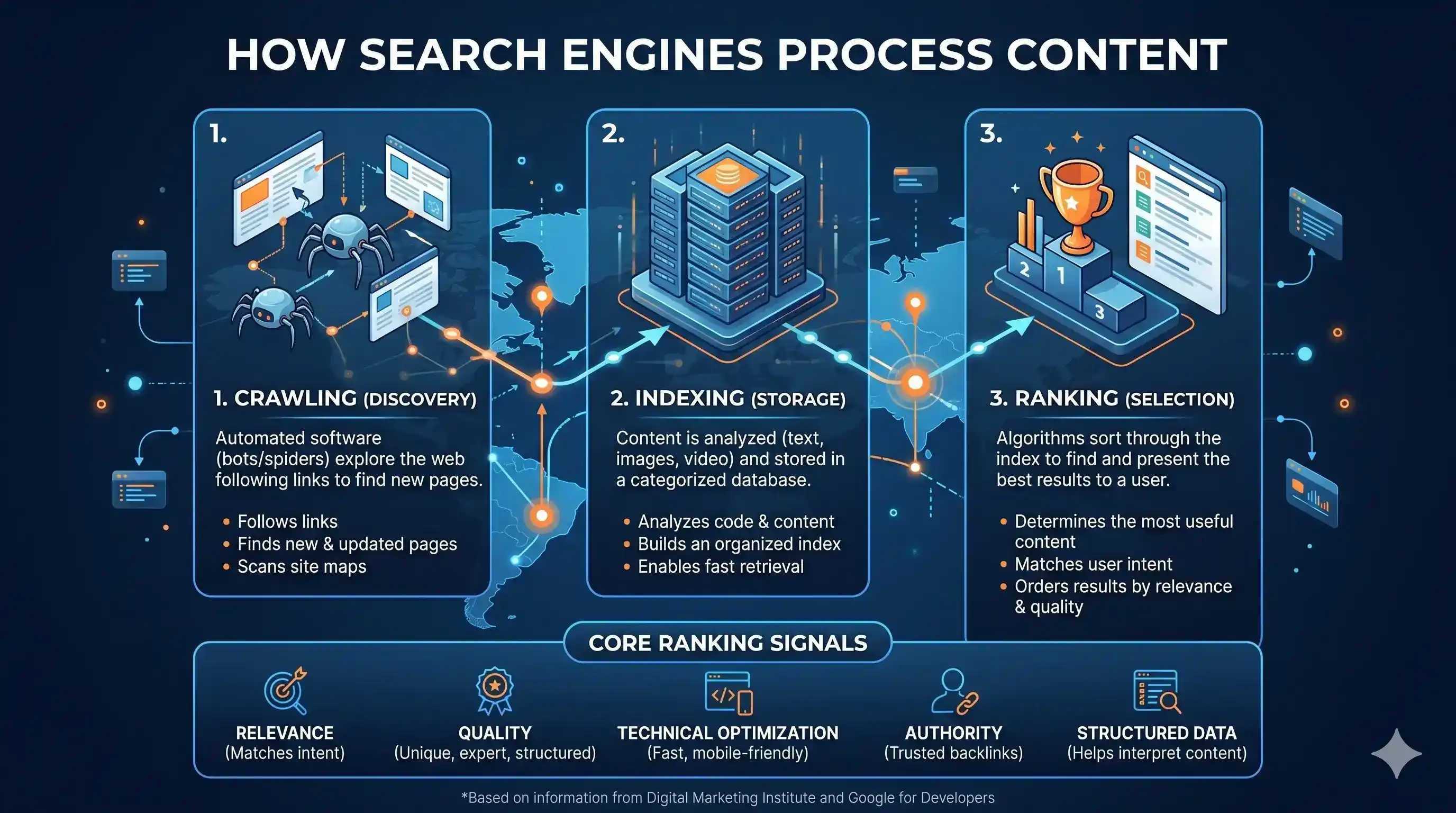
The Digital Cartography: How Search Engines Map the Modern Web
- chatGPT – A compassionate honest buddy or fatal enemy.
- How to make money online?
- LINUS TORVALDS “A MAN BEHIND LINUX”
- Top 10 Tips to Save Money Without Feeling Miserable
15. System Overheating & Fan Noise
Fixes:
Use a cooling pad
Remove dust from vents
Disable heavy background apps
Change power plan to Balanced

Prevention Tips
Prevention Tips – Keep Windows Healthy
| Tip | Benefit |
|---|---|
| Install updates regularly | Security + features |
| Use SSD instead of HDD | Faster performance |
| Keep antivirus enabled | Protection |
| Avoid pirated software | Prevent malware |
| Backup data monthly | No data loss risk |
| Clean temporary files | Faster OS |
| Use genuine drivers | Stability |
Conclusion
The Windows operating system is powerful and feature-rich, but like any technology, it can run into problems due to hardware issues, software bugs, corrupt files, viruses, or improper settings. The good news is that most of these problems can be fixed without professional help using basic troubleshooting steps like restarting services, updating drivers, clearing temporary files, running system commands, and using built-in troubleshooters.
By following the solutions mentioned above, you can resolve issues related to performance, networking, booting, display, audio, updates, application crashes, overheating, and more. Additionally, performing regular maintenance, using licensed software, and keeping backups can ensure smooth and long-lasting PC performance.
1. Which is better — Windows 10 or Windows 11?
Both are powerful, but Windows 11 offers a modern UI, better security, and optimized performance for new hardware.
2. Why does Windows hang frequently?
The main reason is low RAM, HDD usage, corrupted files, or too many background apps.
3. Should I disable antivirus to increase speed?
No, instead uninstall heavy third-party antivirus and use Windows Security.
4. Is formatting the only solution for serious problems?
No, formatting is definitely not the only solution for serious problems. In fact, it should generally be considered a last resort.
Before resorting to a full system format, there are several effective troubleshooting steps you can take to address severe Windows issues.
Run System File Checker (SFC) and DISM: These built-in Windows commands are designed to detect and repair corrupted system files that often cause crashes or stability problems. You can run sfc /scannow and DISM /Online /Cleanup-Image /RestoreHealth in the Command Prompt (Admin) to fix these issues.
Try a Repair Install: This process reinstalls Windows while keeping your personal files, apps, and settings intact, which can fix deep-seated issues that standard troubleshooting cannot.
System Restore: This allows you to roll your system back to a previous point in time when it was working correctly, effectively undoing recent changes or updates that might have caused the error.
Use Built-in Troubleshooters: Windows includes specialized troubleshooters for updates, sound, hardware, and network connectivity that can automatically detect and resolve common underlying issues.
Formatting erases all your data and installed programs, whereas these methods attempt to fix the underlying system integrity while preserving your work and files. It is always recommended to try these repair procedures first.
Over to You! ❤️
“I really appreciate you taking the time to read this blog. Your thoughts and feedback mean a lot to me, so I’d love to know your opinion in the comments!”
Drop your thoughts in the comments.
Share this post with your tech-loving friends.
Follow us for more future tech insights.