
How to Fix Sitemap Errors in Google Search Console (Beginner Friendly Guide 2026)
If your website is not getting indexed properly or Google Search Console shows errors like “Couldn’t fetch sitemap”, “Sitemap type: Unknown”, or “0 URLs discovered”, don’t panic. These errors are very common, especially for new websites or WordPress users.
I started my blogging journey without much knowledge of Google Search Console, but over time I learned its value and I’m still learning how to deal with its errors. Today we’ll discuss about sitemap in google search console and errors occured in sitemap.
In this detailed guide, you will learn what a sitemap is, why sitemap errors happen, and how to fix them properly — even if you are a beginner.
What is a Sitemap and Why It Matters?🙋♀️
A sitemap is a small XML file that works like a roadmap of your website for search engines such as Google. It tells Google:
Which pages exist on your site
Which pages are important
When pages were last updated
How your website is structured
Without a sitemap, Google can still find your pages, but it takes longer and may miss some pages. A proper sitemap helps faster crawling, better indexing, and improved visibility in search results.
Typical sitemap URL looks like:
https://yourdomain.com/sitemap_index.xml
Common Sitemap Errors in Google Search Console🧩
Many website owners see these errors:
Couldn’t fetch sitemap
Sitemap type: Unknown
0 URLs discovered
404 / 500 server error
Sitemap blocked by robots.txt
These errors mean Google cannot read your sitemap correctly, which slows down indexing and may reduce your traffic.
Why Sitemap Errors Happen (Explained Simply)🤔
Understanding the cause helps you fix the issue quickly.
1. Wrong Sitemap URL (Most Common Mistake)❌
Many beginners submit:
/sitemap.xml
But SEO plugins like RankMath and Yoast usually generate:
/sitemap_index.xml
If you submit the wrong URL, Google cannot find your sitemap properly.
2. Sitemap Not Opening in Browser🔒
If your sitemap shows:
404 Not Found → Sitemap missing
Blank page → Broken sitemap
Server error → Hosting or plugin issue
Google cannot read it if it cannot open.
3. Permalink Structure Problem (Very Common)❓
WordPress uses rewrite rules to generate sitemap URLs. Sometimes these rules break, and sitemap stops working. Refreshing permalinks often fixes the issue instantly.
4. Cache or Firewall Blocking Googlebot🤖
Caching plugins, security plugins, or Cloudflare may block Google from accessing sitemap files, causing “Couldn’t fetch” errors.
5. Empty Sitemap (No URLs Found)🫗
If your website has:
No published posts
Posts marked noindex
Categories disabled in sitemap
Google sees an empty sitemap and may show errors.
6. robots.txt Blocking Crawling 🐤
If robots.txt blocks Google, it cannot read your sitemap.
Step-by-Step Fix for Sitemap Errors 🪜
Follow these steps carefully. Don’t skip any step.
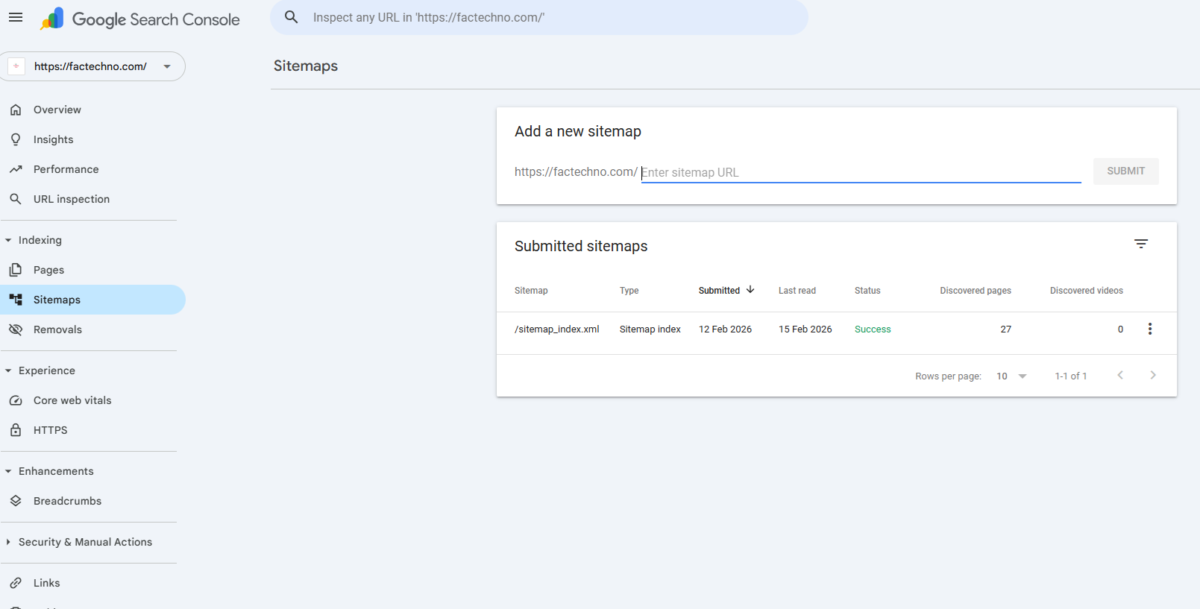
Step 1 — Submit Correct Sitemap
If you are using RankMath, your sitemap is:
https://yourdomain.com/sitemap_index.xml
Go to:
Google Search Console → Sitemaps → Submit this URL
This sitemap contains all other sitemaps (posts, pages, categories).
Step 2 — Check Sitemap Manually in Browser
Open your sitemap URL in browser.
You should see multiple sitemap links such as:
post-sitemap.xml
page-sitemap.xml
category-sitemap.xml
If it does not open or shows error, your sitemap is not working and must be fixed before submitting.
Step 3 — Refresh Permalinks (Most Important Fix)
This step solves many sitemap issues instantly.
Go to:
WordPress Dashboard → Settings → Permalinks → Click “Save Changes”
You don’t need to change anything — just click Save.
This refreshes WordPress rewrite rules and fixes broken sitemap links.
Step 4 — Enable Sitemap in RankMath
Go to:
WordPress Dashboard → RankMath → Sitemap Settings
Make sure:
Sitemap = Enabled
Posts = Enabled
Pages = Enabled
Categories = Enabled
Click Save Changes
If posts or categories are disabled, they won’t appear in sitemap.
Step 5 — Clear Cache (Very Important)
Caching sometimes blocks updated sitemap.
If using cache plugin:
Clear All Cache
Clear Server Cache
If using Cloudflare → Purge Everything
Then reload sitemap in browser and check again.
Step 6 — Check robots.txt
Open:
https://yourdomain.com/robots.txt
It should look like:
User-agent: *
Disallow:
Sitemap: https://yourdomain.com/sitemap_index.xml
If sitemap or crawling is blocked, Google cannot fetch it.
Step 7 — Make Sure You Have Published Posts
Check:
Posts must be Published (not Draft or Private)
Posts must be Indexable
In RankMath → Post → Advanced:
Allow search engines to index = YES
If you have no indexable posts, sitemap may show 0 URLs.
Step 8 — Check Firewall / Security Plugin
Security plugins sometimes block Googlebot.
Temporarily disable:
Wordfence
Security plugins
Hosting firewall
Cloudflare bot protection
Then test sitemap again.
Step 9 — Re-submit Sitemap
After fixing:
Remove old sitemap in Search Console
Submit sitemap_index.xml again
Wait a few hours
Google will reprocess it automatically.
How Long Does It Take to Fix Sitemap Errors?
Sitemap readable → 10–30 minutes
Status update → Few hours
URLs discovered → 1–3 days
Indexing improvement → 1–2 weeks
Be patient — indexing takes time.
Final Thoughts
Sitemap errors may look scary, but they are usually easy to fix. In most cases, refreshing permalinks, clearing cache, and submitting the correct sitemap solves the problem.
A working sitemap helps Google crawl your website faster, index pages properly, and improve your visibility in search results.
FAQ
Q1. Which sitemap should I submit in RankMath?
Submit sitemap_index.xml.
Q2. Why does Search Console show “Couldn’t fetch”?
Usually due to cache, firewall, wrong sitemap URL, or empty sitemap.
Q3. Do I need to resubmit sitemap every time?
No. Only when fixing errors or after major changes.
Q4. Can sitemap errors affect SEO?
Yes. If Google cannot read sitemap, indexing becomes slower.
Over to You! ❤️
“I really appreciate you taking the time to read this blog. Your thoughts and feedback mean a lot to me, so I’d love to know your opinion in the comments!”
Drop your thoughts in the comments.
Share this post with your tech-loving friends.
Follow us for more future tech insights.
